Quick Start
The step-by-step walkthrough starts below, but six of them make up the core workflow: choose a mode, select a model, enter a base prompt, adjust parameters, add references and generate.
The Dashboard is the launchpad
Section titled “The Dashboard is the launchpad”After logging in, you will land on the Dashboard.
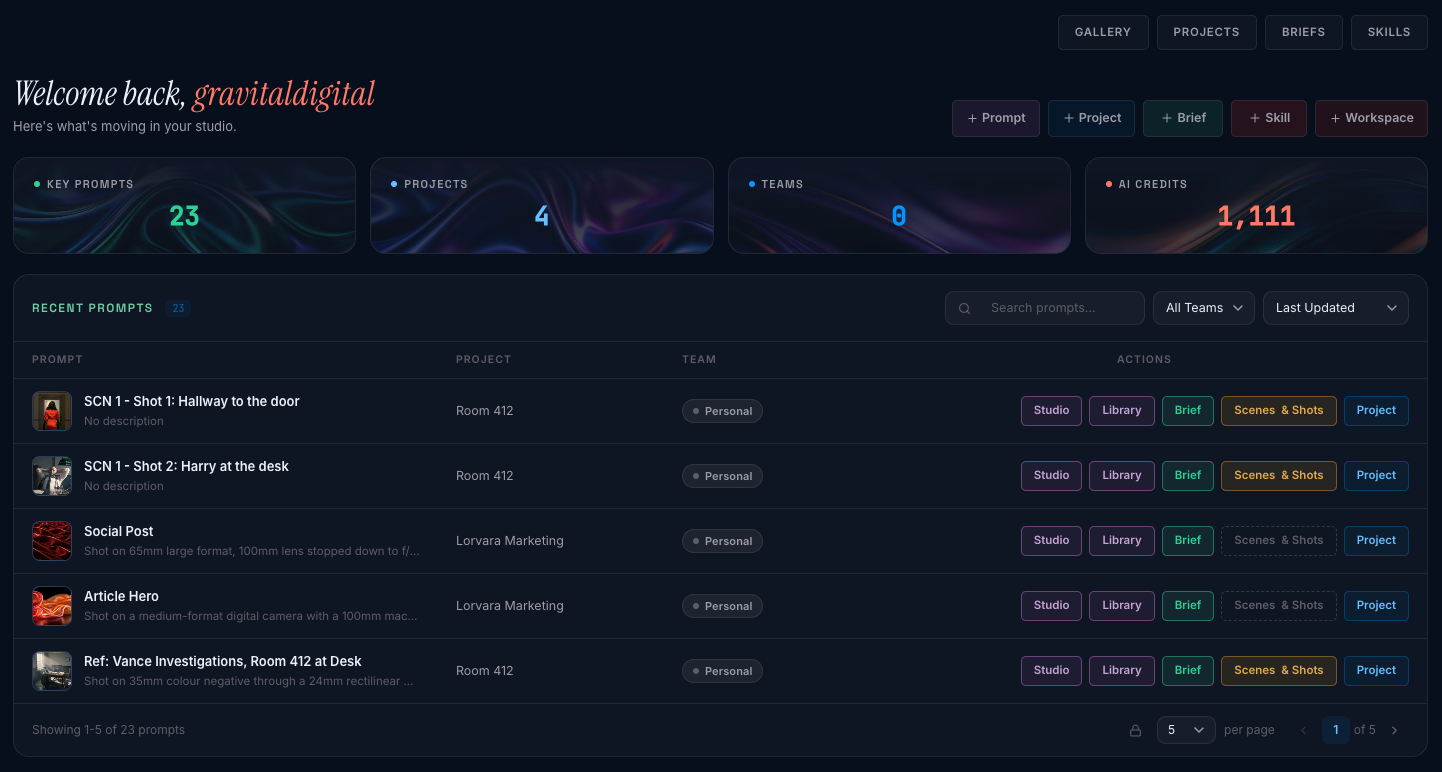
This is your jumping off point for managing and creating prompts.
Create a new prompt
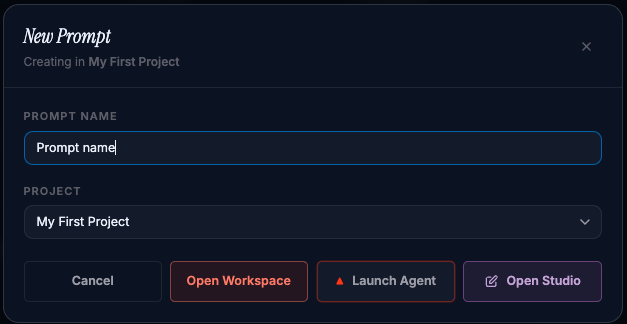
Section titled “Create a new prompt”Click +Prompt to create a prompt and name it.
1. Enter the Studio
Section titled “1. Enter the Studio”Press the Open Studio button at the bottom of the dialog, and the Studio opens ready to create your prompt.
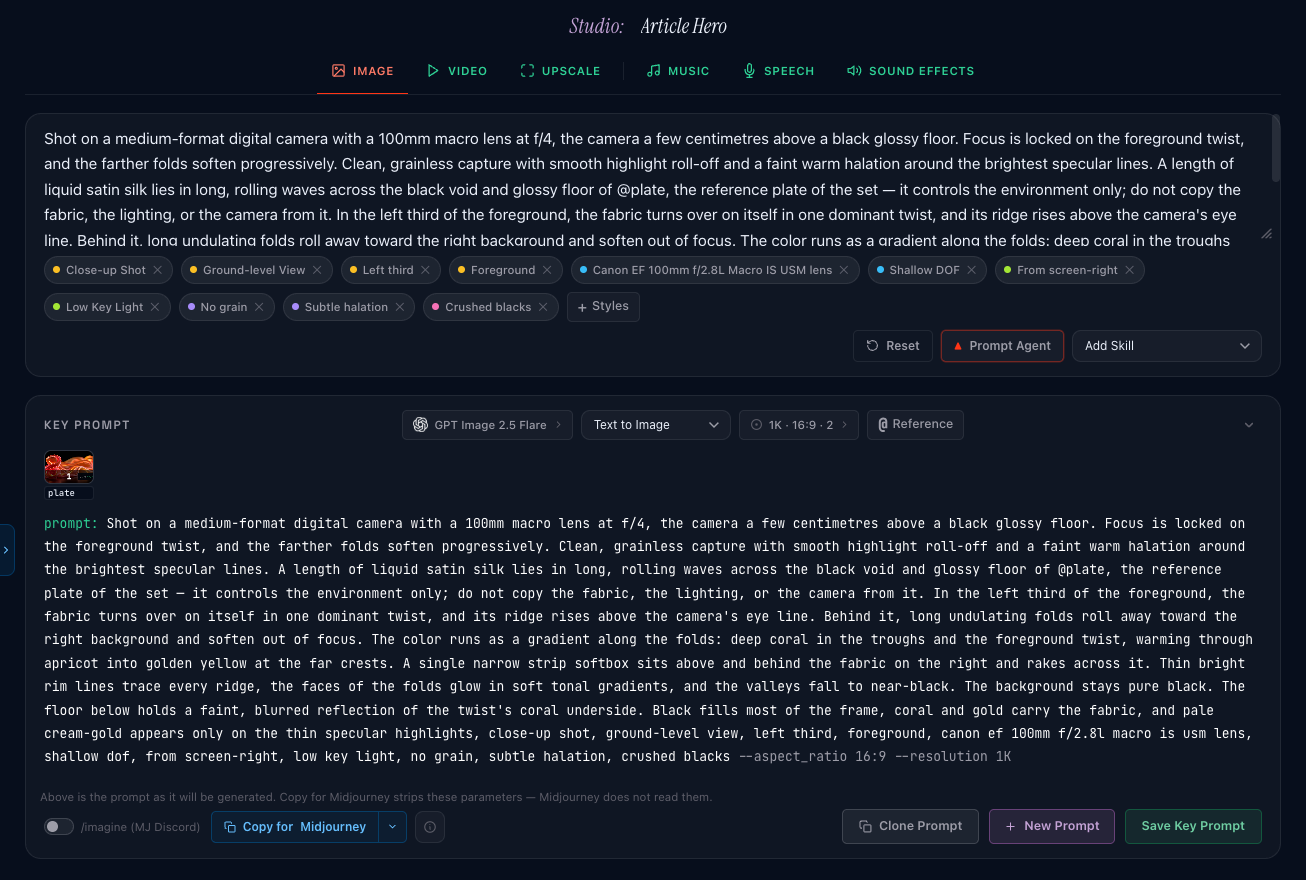
You will notice two text boxes. The top box is your basic natural language prompt, and the second is what we call the Key Prompt.
2. Choose a generation mode
Section titled “2. Choose a generation mode”The mode tabs sit across the top of the Studio: Image, Video, Upscale, then Music, Speech, Sound Effects.
Pick the mode first, because it drives everything below it: which operations exist, the models available, and the parameters available for the media you wish to generate.
Selecting an Image or Video mode also gives you a few operations as follows:
| Mode | Operations |
|---|---|
| Image | Text to Image · Edit Image |
| Video | Text to Video · Reference to Video · Start frame · Start and end frame |
| Upscale | Upscale |
| Music | Text to Music |
| Speech | Text to Speech |
| Sound Effects | Text to Sound Effect |
For your first run, take Image → Text to Image (the default). It is the shortest loop and to producing an AI-generated image.

3. Enter a base prompt
Section titled “3. Enter a base prompt”In the text area below the mode selector, type your natural language prompt. Note that this is not the prompt the model receives. It is what you tell the agent, so write it the way you would brief a person:
a striking yellow mariner’s raincoat on a harbour wall at first light, cold flat sea behind it, shot like a catalog cover
If you plan to use the Prompt Agent (below) here, simply describe your basic concept. Lorvara’s Claude agent will ask you a few questions to help you dial in your prompt. Otherwise, prompt as you would normally.
4. Select a model
Section titled “4. Select a model”By default you will see the Model tab in the inspector on the right. It shows all Usable (the models that can actually run the mode, operation and duration you choose), with All Models visible with the toggle. If a model is grayed out, it shows as a grayed card carrying the reason it cannot be used. See The model picker.
If you have no preference yet, try the default models. You can always select a different model later.
Lorvara monitors information about every model including our own internal tests that measured detailed aspects about each model that help you in the UI and more. We provide a few hints along the way.
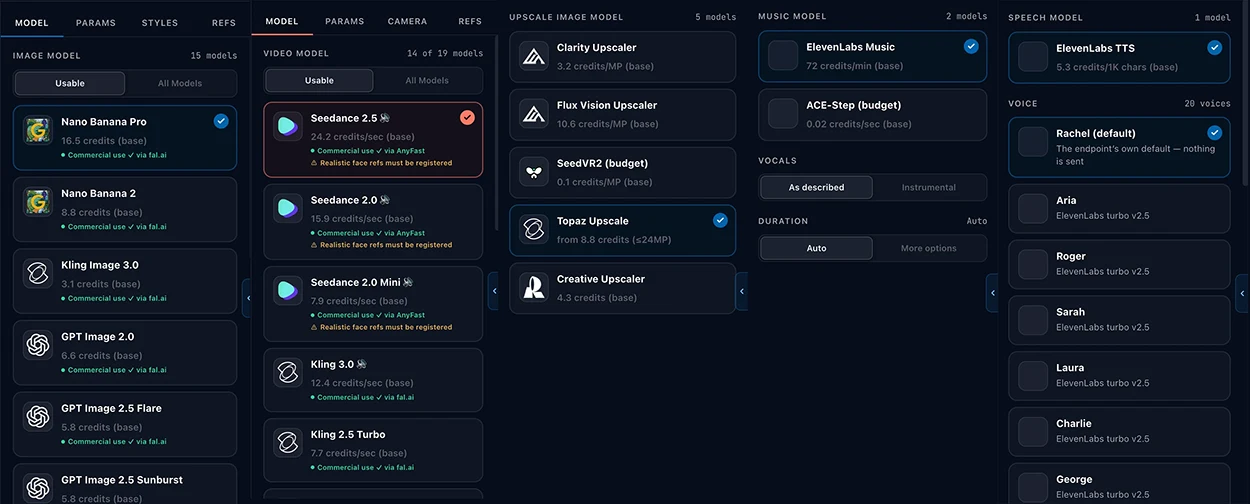
5. Adjust parameters
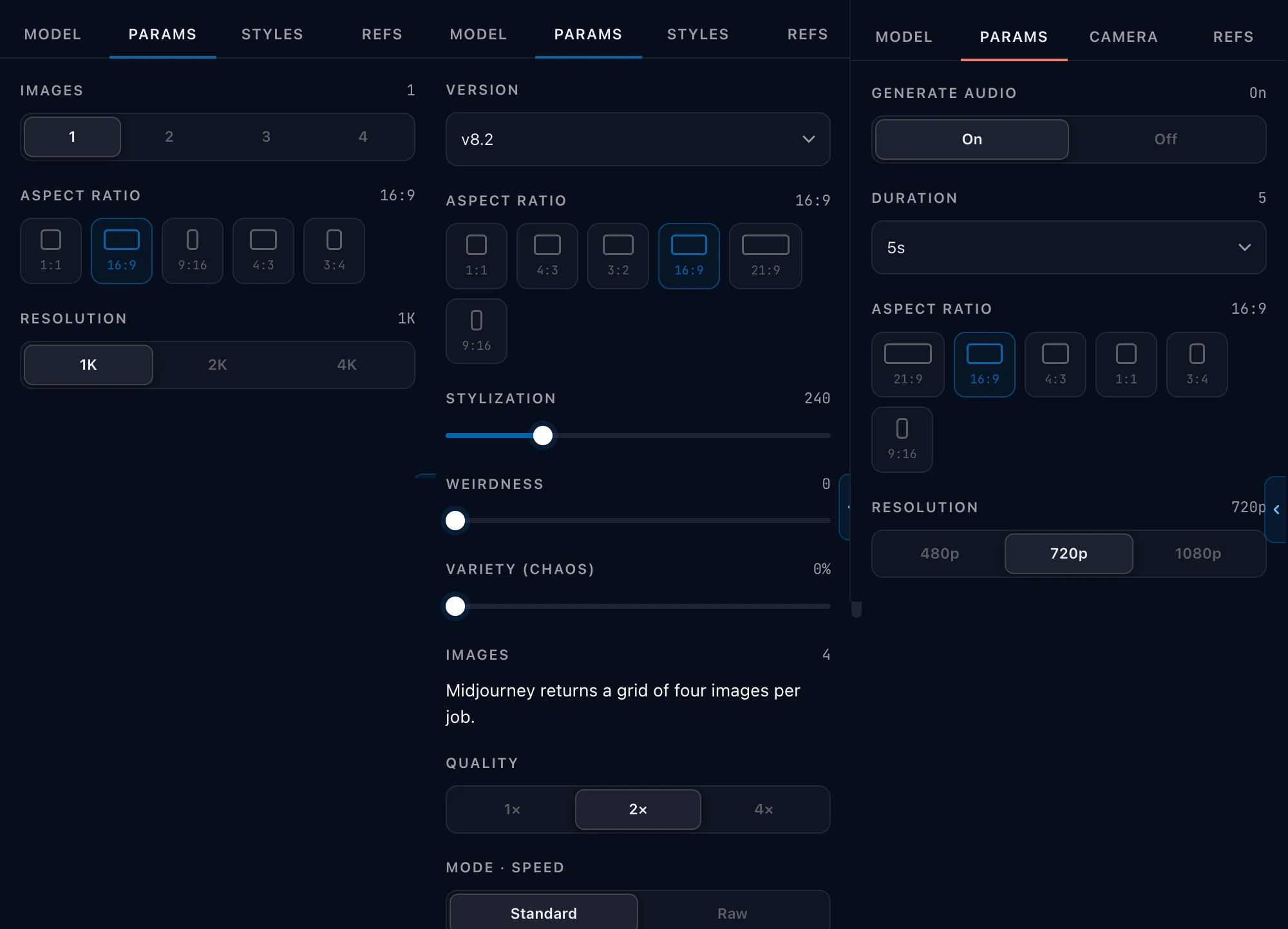
Section titled “5. Adjust parameters”The Params tab holds what the chosen model’s accepted parameters’: aspect ratio, media count, quality, duration and whatever else that model exposes. The panel is built from the model, so it changes when the model does.
Set your parameters to generate for your first run.
6. Add references (optional)
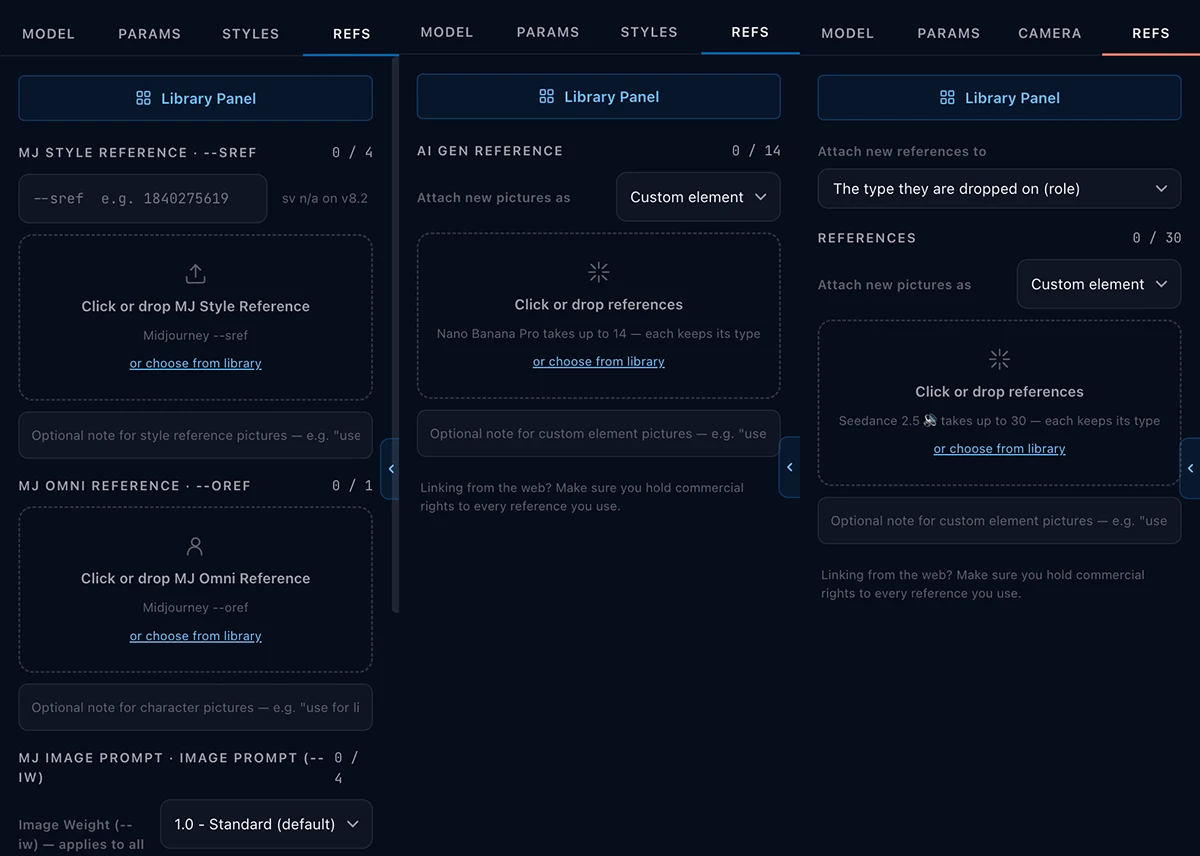
Section titled “6. Add references (optional)”The optional Refs tab is used to add images to the prompt that passes images to the model in several categories looks (a character sheet, a product, a location, a style reference).
References are available in Image and Video modes. Add a reference image, or feel free to skip this step.
7. Launch the Claude Prompt Agent (recommended)
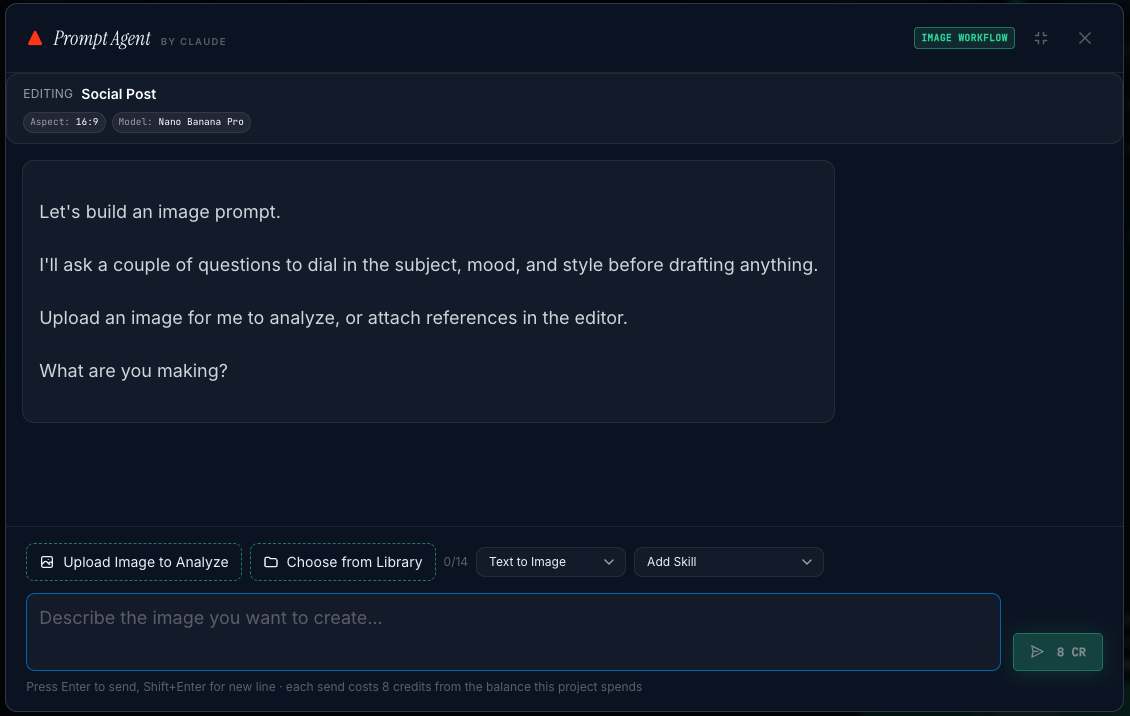
Section titled “7. Launch the Claude Prompt Agent (recommended)”Next, we recommend launching our prompt composer, the Claude Prompt Agent.
The agent reads what you have set for the prompt in the Studio: your base prompt, the mode and operation, the model, parameters, and any references you attached.
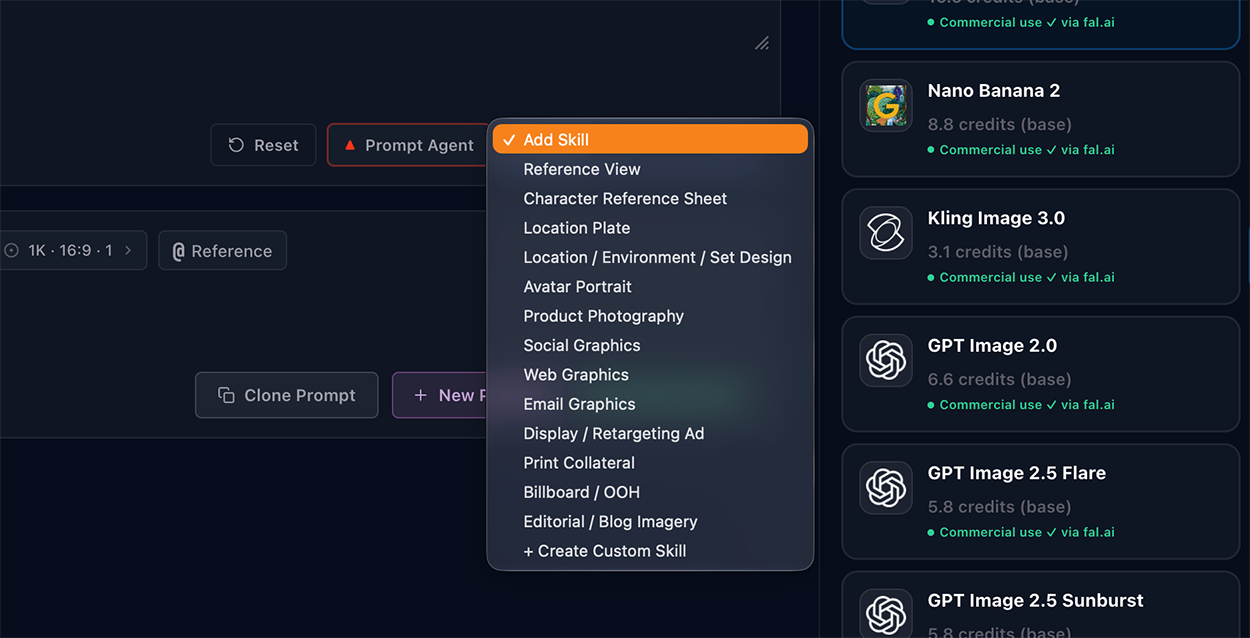
8. Select a Skill (Optional)
Section titled “8. Select a Skill (Optional)”If you desire a specific type of output, consider adding a skill. The Skill picker sits beside the Prompt Agent button, and is also available in the agent dialog that opens.
A Skill is a set of instructions for a particular kind of generation: how a product is lit, how a portrait is framed, and language a given model responds to. Without one the agent writes competently and generically. With one it writes like someone who has made that kind of picture before. See how Skills work.
9. The agent writes the Key Prompt
Section titled “9. The agent writes the Key Prompt”The agent composes the prompt and shows you what it did. Review the Key Prompt. It proposes, you accept. That is deliberate: a system that presents what will be sent to the model presented clearly.
What lands in a Key Prompt: the text plus the model, the parameters and the references it needs to run again. Please review it before you generate. If it has misread your input, correct the base prompt or the Skill and run the agent again as needed. Each send costs 8 credits, and is designed to save you time and bad generations.
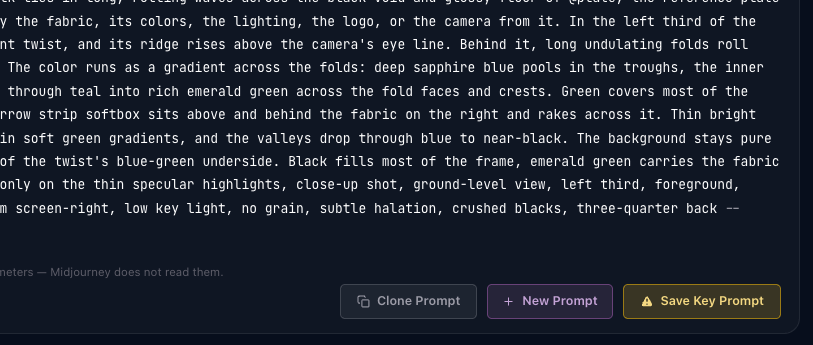
Save Key Prompt will appear amber after every agent modification, and is purposely not auto saved as a reminder that the Key Prompt should be reviewed before generating. Once approved, click to save before generating your media.
10. Generate
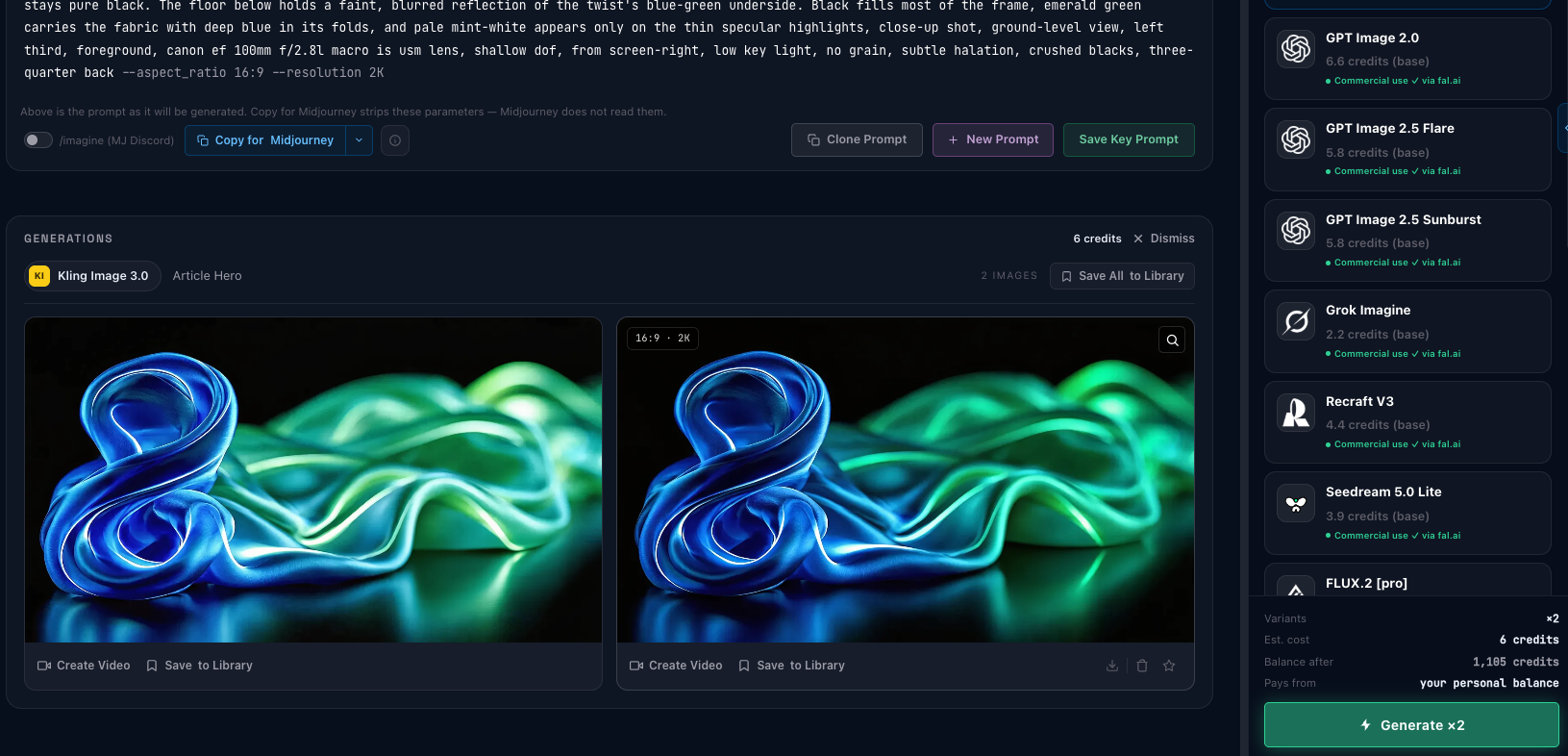
Section titled “10. Generate”Press Generate. Take note of the number of images used to calculate the cost of the generation along with your available credits.
Generation costs depend on the model selected, the number of generations chosen, the resolution and, for video, the duration. Review the cost of the action before you press Generate. The resulting media is automatically saved in your Library associated with the prompt that produced it. Each Key Prompt has its own library of media separated from other prompts. Most media can be accessed in the studio as well.
Next, explore more advanced features
Section titled “Next, explore more advanced features”This is the basic workflow you will use most often. Dive into more advanced features as needed:
- The Lorvara System — the whole product on one screen.
- Mastering Lorvara — what sits above the fast path, and when it starts to pay.
- How do Briefs work? — write the world once; every prompt after it reads from there instead of you retyping it.
- Scenes and shots — a whole shot list turned into Key Prompts in one pass.
- The Studio — every control on this page, in detail.