
How do Briefs work?
A brief sits at the project level. It describes your creative vision to every prompt in the project with the context needed to help maintain consistency.
What is in a brief
Section titled “What is in a brief”A brief is made up of six blocks, filled in any order, none of them required:
| Block | Holds |
|---|---|
| Look | The grade, palette and film language everything is rendered in. |
| Intent | What this is, who it is for, where it runs, the tone. |
| Cast | The named people: how each looks, how they change, how they sound. |
| Locations | The places, each pinned to something unmistakable. |
| Props | The things that matter, and the states they are in. |
| Glossary | Names and terms, with how they are said. |
The blocks goes through them one at a time.
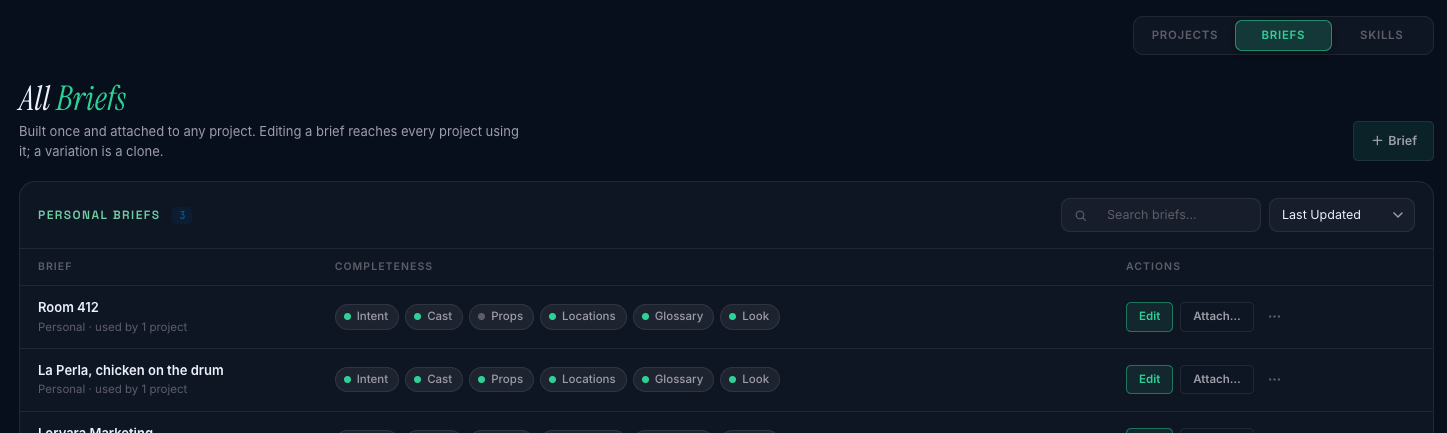
A project can attach a brief. Each brief stands on its own. It is listed on your Briefs page, it belongs to you, and a project uses it. Any number of projects can use the same one.
A project without a brief is normal, not incomplete. The Prompt Agent composes from each shot alone until a block is confirmed.
It provides context to the Prompt Agent. If your brief specified default models, for example, the agent doesn’t need to know what models you are using and automatically assigns them depending on the mode selected.
Good to know
Section titled “Good to know”“Uses” is precise: a project points at your brief, it does not copy it. Correct a character’s pronunciation and every project using that brief has the correction the next time a prompt is composed. Add a costume state and it is there for all of them. This is the whole point for a recurring world (a series, a returning client, a house style), and it is the part that would be worst served by copying.
Read the reach line before you edit. The brief page states it before you touch anything: Used by 3 projects. Changes here reach all of them. That line is the difference between a correction and an accident.
Clone when the change is not meant for everyone. For a variation (this client’s version of the house style, this shoot’s extra location), clone the brief and attach the clone where the variation applies. A clone is a full, independent copy under its own name: editing it never reaches the original, and editing the original never reaches it. Prompts behave the same way, and so does the instinct: edit the shared thing when the change is for everyone, clone it when it is not.
The shot list is not part of a brief. It is a work order for one shoot and it lives on the project page. See The shot list. A brief describes what is always true; a shot list says what you are making today.
Reusing a brief covers attaching, detaching and cloning properly, including what happens to reference pictures.
Your first brief, step by step
Section titled “Your first brief, step by step”The shortest path to seeing a brief do something. Paste a document, parse it, confirm one block, watch a prompt use it. About ten minutes. You will need a project with at least one prompt in it, or be willing to write one, and a brief document to paste. If you do not have one, the brief template gets one written in a few minutes.
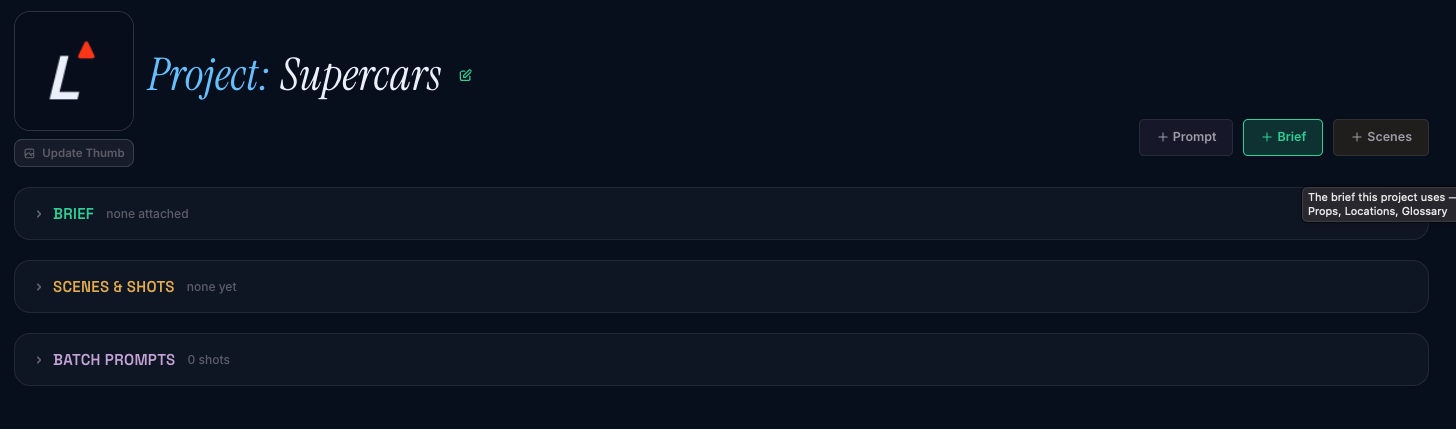
1. Click +Brief to start the process
Section titled “1. Click +Brief to start the process”Open a project. In the header, beside Workspace, there is a Brief button.
If the project has no brief yet, that button takes you to a page offering three ways to start one, and a picker for any brief you already have. Take the first, Create Brief, and you land on an empty brief. The project now uses it.
2. Paste or upload the brief you created
Section titled “2. Paste or upload the brief you created”Click Create a Brief on the next page or you can choose to upload your brief here or launch the Brief Agent to walk you through the steps of creating one from scratch.
The most common workflow is to click Create a Brief and on the blank brief page you have the option to download instructions or a skill to use with your LLM to move this into your creative workflow process. Once created you can either upload the LLM output as an .md file or simply paste the contents of the brief into the text window

3. Press Parse into every block
Section titled “3. Press Parse into every block”Press Parse into every block. Each block is read separately and lands as its own draft, one row at a time, while a progress list under the button counts them in. This can take a few moments depending on the complexity of the brief.
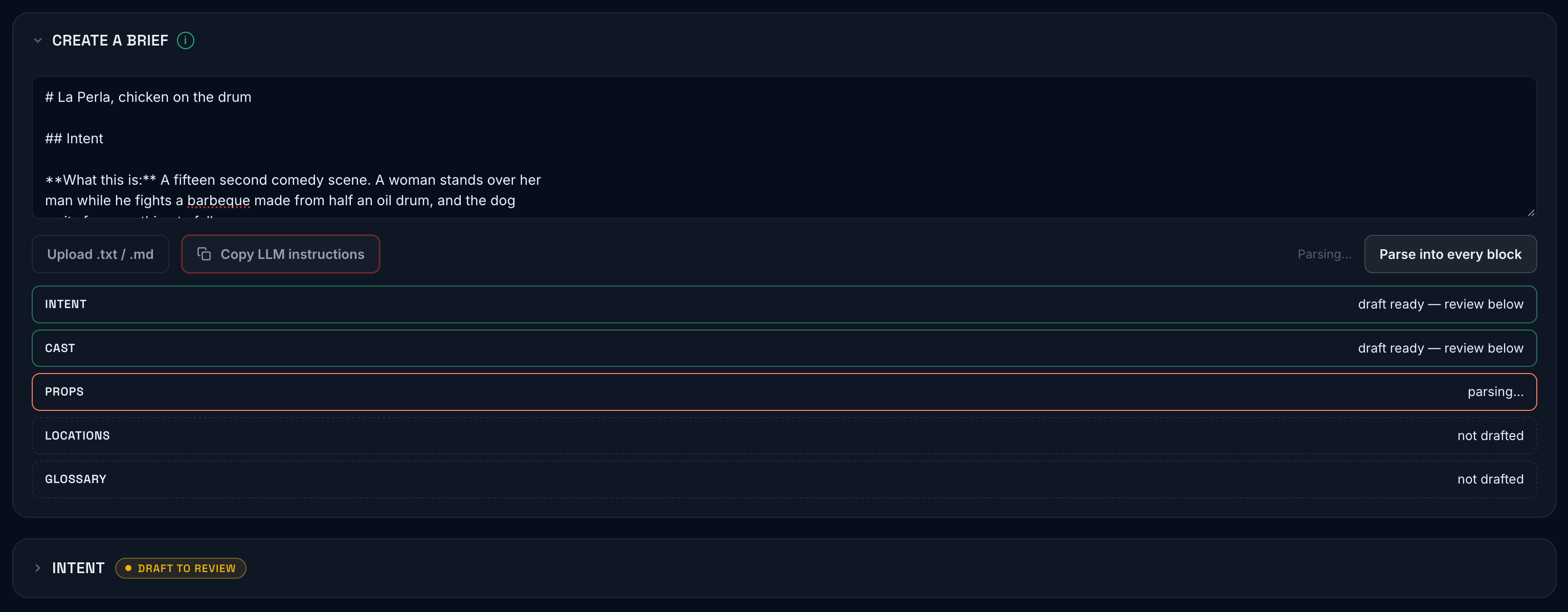
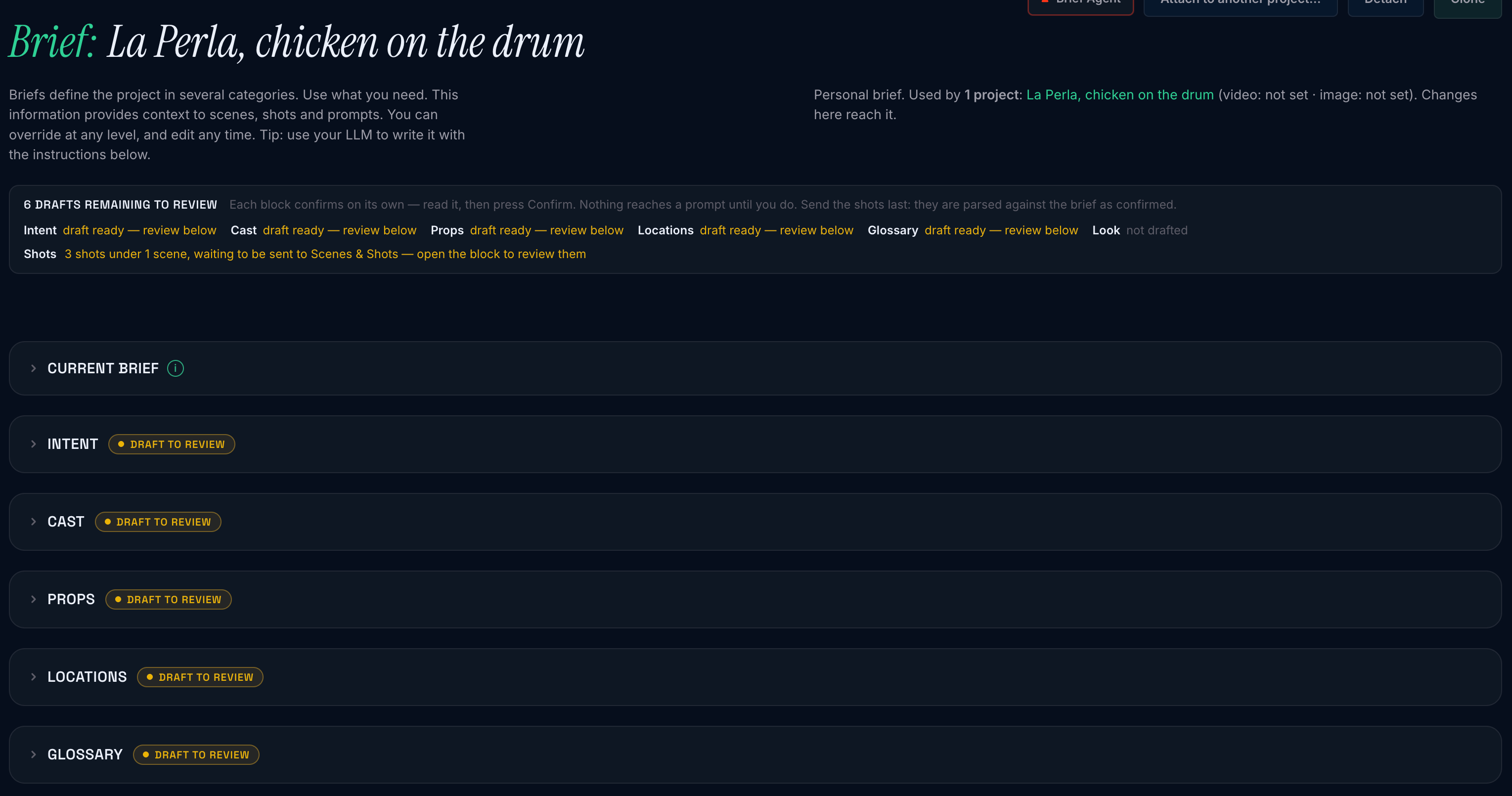
When they have all landed, every block is amber: drafted, waiting for you.
4. Review and confirm each block
Section titled “4. Review and confirm each block”Start with Intent. It arrives populated: what the piece is, who it is for, where it runs, the tone, and any production-wide notes the document stated. Read it. Fix anything the parser got wrong, in the fields. Leave anything the document did not say empty. Empty is a fine answer. An invented one is not.
Then press Confirm under the block.
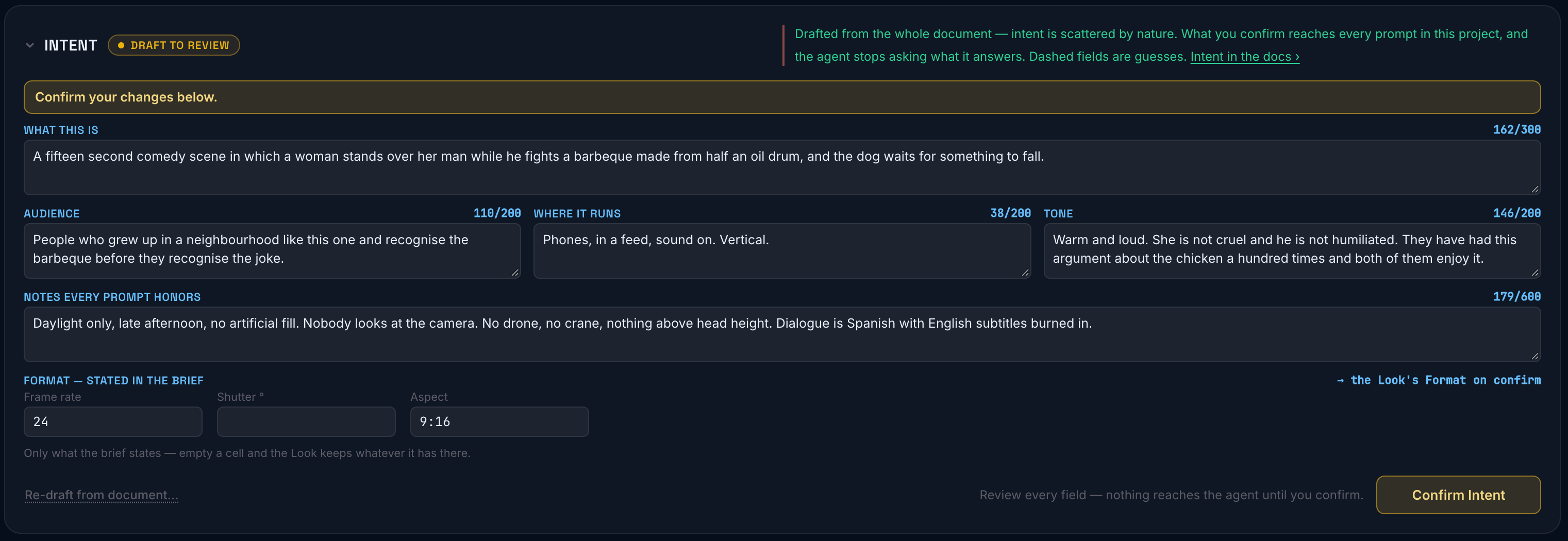
Nothing confirms itself. Not the parser, not the agent, not a save. Only your explicit confirmation. Drafts and confirming explains why that is a deliberate line rather than an extra click.
The block’s badge will show confirmed. Do the same for Cast, Locations, Props and Glossary, in any order. The Look is yours to pick from the catalog rather than read from the document, so it stays empty until you choose.
5. Check the project page
Section titled “5. Check the project page”Go back to the project page. Under the header there is a Brief summary card: one badge per completed block, solid emerald badges show for the ones you have confirmed.
If the document carried a shot list, it was set aside rather than parsed into a brief block. Once the blocks are confirmed, it goes to the project’s Scenes & Shots, and the shots arrive already knowing your cast and locations. Sending the shots covers that step and why it comes last.

6. Briefs in the background
Section titled “6. Briefs in the background”What briefs do in the background is to provide context to prompts in that project. Later, when you start a conversation with the Prompt Agent for a specific prompt, it knows what is held in the brief.
Ask it something it would previously have had to ask you about (“make this work as an opener”) and watch what it does not ask. It will not ask who the piece is for or where it runs. It already knows, and it writes for a phone in a feed, sound off, without being told again.
That is the whole payoff. Everything else about briefs is more of it, including the scenes and shots.
What to do next
Section titled “What to do next”- If you haven’t already, confirm the rest of the blocks. The blocks says what good content looks like in each.
- Briefs can also be accessed on the Briefs page. This becomes your library of briefs. When the next project is set in the same world, you might consider attaching the same brief to it; particularly for when you need edits to one brief to reach both projects. Reusing a brief covers attaching, detaching and cloning, and what an edit reaches.
What to read next
Section titled “What to read next”- Three ways to fill one: from a document, by being interviewed, or by editing the draft by hand.
- Drafts and confirming: why nothing is ever confirmed for you.