Copy for platform
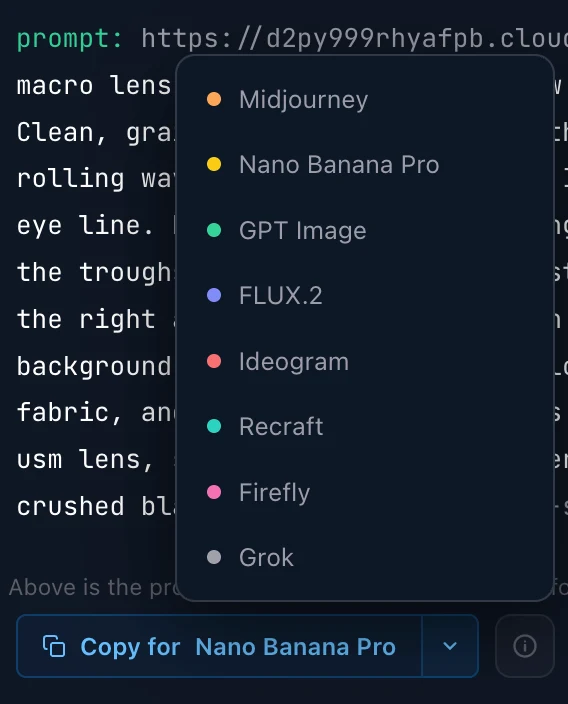
You do not have to generate inside Lorvara. If you have a Midjourney subscription already, or a model you use elsewhere, the Key Prompt is portable, and it is rewritten on the way out rather than copied verbatim.
Where it is
Section titled “Where it is”Copy sits with the compiled prompt, in the Studio and on the prompt’s own page. Choose the destination and the text on the clipboard changes with it.
What changes per destination
Section titled “What changes per destination”The same Key Prompt is a different string for each platform, because the platforms disagree about where instructions belong.
| What | Midjourney | Everywhere else |
|---|---|---|
| Parameters | Trailing -- flags |
Removed: they are interface settings there |
| Aspect ratio | --ar 16:9 |
Prose on the targets that sanction it; otherwise set it in their UI |
| Negative prompt | --no |
Rewritten as a positive instruction, or moved to a separate field |
Aspect ratio is the one to watch. Midjourney takes it as a flag. A small number of platforms officially accept it in the prompt text, so it is written into the sentence. On the rest it is a setting in their interface and Lorvara leaves it out. Putting it in the prompt there does nothing at best, and gets read as subject matter at worst.
Some destinations need two pastes. Where a platform keeps negatives in their own box rather than in the prompt, Copy gives you a second field to paste separately. It is labeled with the name that platform uses.
Using Midjourney in Discord
Section titled “Using Midjourney in Discord”Tick Add /imagine and it gets appended to the front of a prompt ready to copy for Discord. Leave it unticked for Midjourney’s web interface, which supplies the command itself. Note that Discord workflows are optimized in Lorvara. Midjourney images generated in Discord can be imported quickly into a prompt Library using the copied URL (see Bringing a result back below).
How references work for Midjourney
Section titled “How references work for Midjourney”Assigning references to Midjourney-based prompts allows you to paste prompts into Midjourney in one step.
Pasting to Midjourney, and the reference images transfer. Every reference you attached is written into the copied prompt as a public URL that Midjourney can fetch on its own when pasted into MJ’s web input or Discord input. Paste the line and the references quickly appear as they were assigned:
| In Lorvara | In the copied prompt |
|---|---|
| Style references | --sref with each picture’s URL, and the style code if you set one |
| Character references | --cref on the v6 line, --oref from v7 up |
| Object, environment and custom references | Image prompts at the front of the line, with --iw when you changed the weight |
One limit, from v7 up. --oref takes a single picture. If you attached more
than one character reference, the first is sent and the others are not. On the v6
line, --cref carries all of them.
To every other destination, the words go and the pictures stay. Those tools have no way to take a reference inside a pasted prompt, so Copy sends the description only. Attach your pictures again in that tool.
Bringing a result back
Section titled “Bringing a result back”Media you generated in Midjourney can be imported back into the Key Prompt that produced it. It’s important to understand that images created in the web version of MJ must be downloaded and reimported into a prompt library. However, power users can transfer images back quickly from Midjourney’s Discord server using the URL for the image to import directly.
Discord links (URLs) and Midjourney’s own image links (cdn.midjourney.com) are both recognized in Lorvara’s import dialogs.
What to read next
Section titled “What to read next”- How we track models — why each destination is treated differently.
- The Library — where an imported result lands.
- Troubleshooting — when a copy does not behave.