How does the Workspace work?
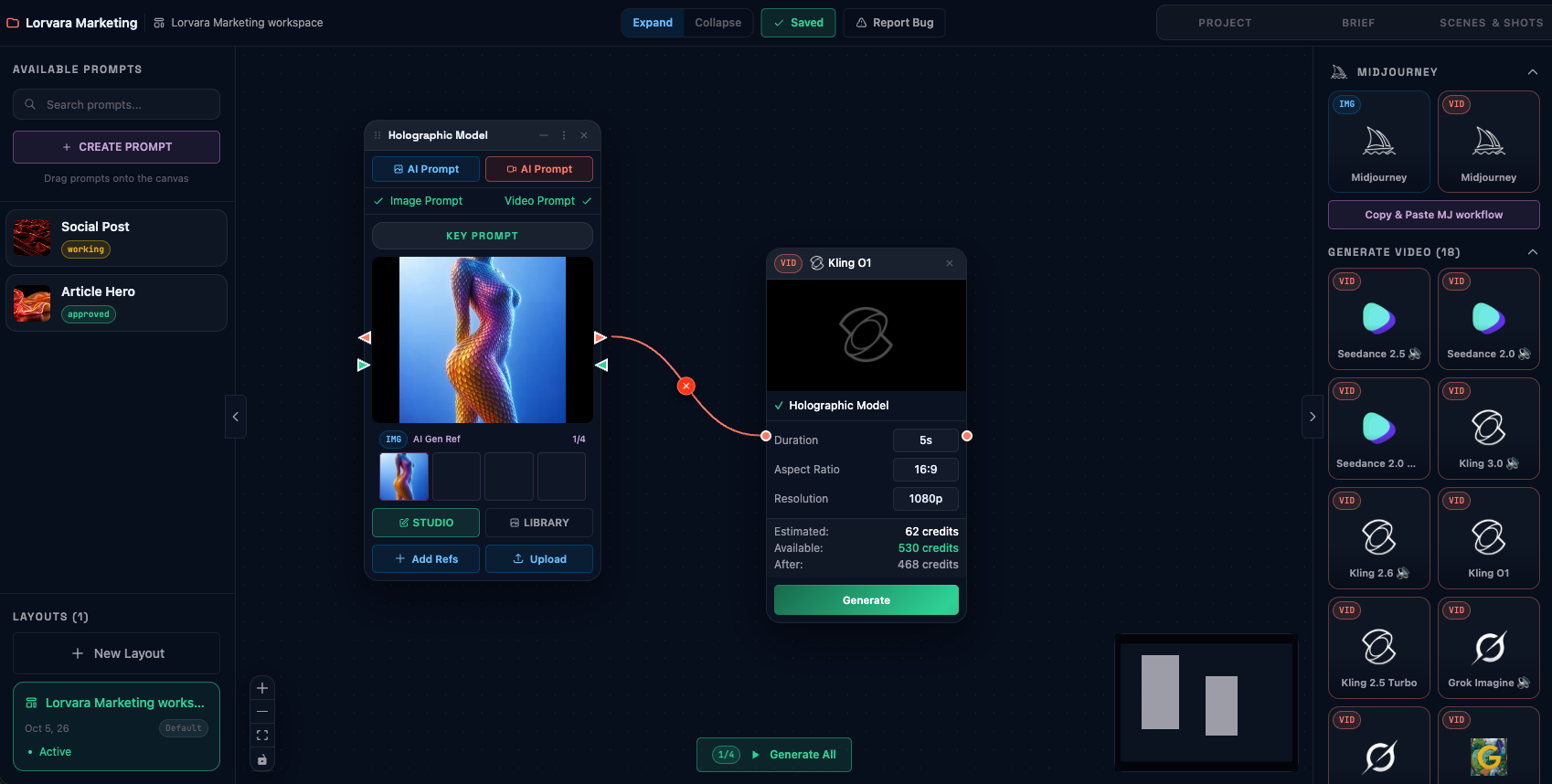
The project page is the list. The Workspace is the same work spread out, where you can see how the pieces relate, put them where they belong, and work on them in place.
How you’ll use it
Section titled “How you’ll use it”One project, one Workspace. You reach it from the project, and it holds that project’s prompts. Arriving from a particular prompt opens with that one selected, so you land where you were going.
Arrange and connect. Prompts are things you place and join, not rows in a table. What relates to what is something you can show rather than remember.
Attach references here too. The Workspace has its own reference dialogs, so pointing a shot at an existing asset is done where you can see both. It is one of two surfaces that attach, alongside the Studio.
Generate from here. It is a working surface: the results come back to the prompts they belong to.
Storyboard across shots. Where a model supports multi-shot generation, the Workspace is where that sequence is built. Which models can do it, and how many shots and seconds they allow, is a property of the model and shown in the app.
Your layout persists. It is saved with the project and it is yours. Arrange once and come back to it.
Getting around
Section titled “Getting around”Three columns. Prompts and layouts on the left, the canvas in the middle, models on the right. The canvas fits itself to your work when you open it.
- Pan — drag any empty part of the canvas.
- Zoom — scroll, or pinch on a trackpad.
- Collapse — in the toolbar, above the canvas. It drops every card to its cover image and hides the detail, which turns the whole project into a mood board. Press it again to bring the detail back.
It is built for a large screen. Everything works on a laptop; a phone is the wrong tool for this particular surface.
Connecting prompts
Section titled “Connecting prompts”Every prompt card has four handles, one on each side of each edge:
- Orange triangles are outputs.
- Green triangles are inputs.
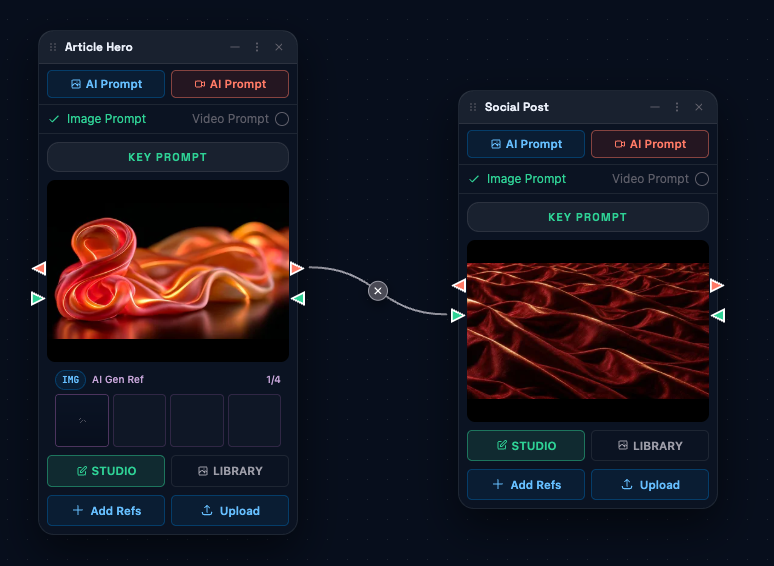
Drag from an orange handle on one card to a green handle on another and the connection is made. There is one on each side of every card precisely so you never have to rearrange your layout to make a connection point the right way. Whichever side faces the card you are joining, use that one.
Model cards take input only. Both of their handles are inputs, so a prompt feeds a model and never the other way round. That is the direction of the whole canvas: prompts flow into generation.
To remove a connection, click the control that sits on the middle of the line. Connections save themselves, so there is nothing to confirm.
What a connection actually does
Section titled “What a connection actually does”It is not decoration, and it is not a dependency. Connecting two prompts opens each one’s library to the other.
Once connected, open Add Refs on either card and the connected prompt’s library appears as its own tab beside this prompt’s. Click across to it and attach anything from it without leaving the dialog.
That is what makes the canvas worth arranging: a master prompt holding a campaign’s references can feed every shot in the project, and you attach from it rather than re-uploading the same face into twelve prompts.
What is on a prompt card
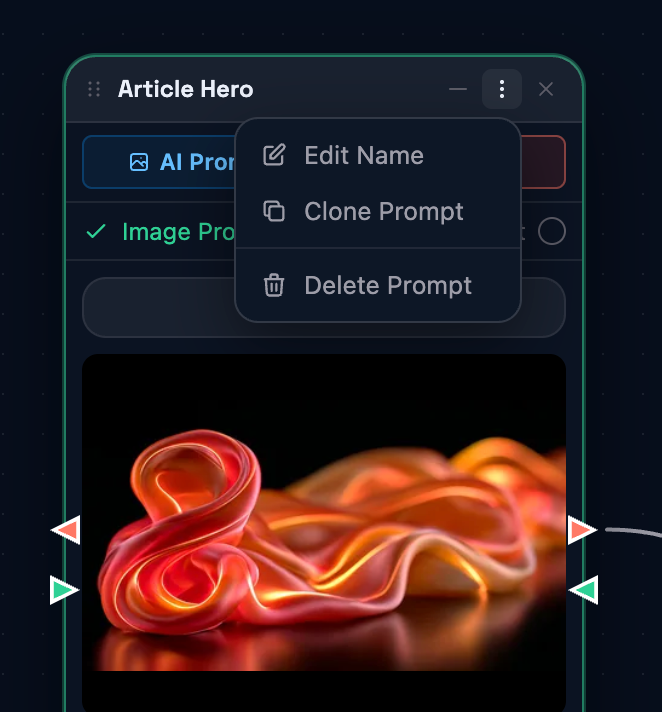
Section titled “What is on a prompt card”Each card carries the prompt’s cover image and its name, and along the bottom:
- Studio — opens this Key Prompt in the Studio.
- Library — its generations and references.
- Add Refs — attach a reference without leaving the canvas.
Two agent buttons sit at the top, one for image and one for video, and the Key Prompt control shows the full compiled prompt as the model will receive it.
The three-dot menu holds the three things that change the prompt itself: Edit Name, Clone Prompt and Delete Prompt. A rename writes immediately; there is no save.
Layouts
Section titled “Layouts”A project can hold more than one arrangement of the same prompts. The Layouts panel on the left lists them; New Layout adds one, and you name it.
The prompts do not change between layouts, only where they sit. So one layout can group a shoot by scene and another by the model it generates on, and you switch between them without moving anything twice.
Layouts save themselves as you arrange.
What is saved, and what is not
Section titled “What is saved, and what is not”This is the one to know before you spend anything.
Written the moment you do it:
- References added or removed
- Cover image changes
- Card positions (your layout)
- Generated media, as soon as it finishes, in the connected prompt’s Library
Not written:
- Parameter changes made on a generator card, which are deliberately temporary, for trying something. The Key Prompt keeps what the Studio holds.
Nothing warns you on the way out. There is no confirmation when you navigate away from a canvas holding parameter changes, and those are not kept.
Good to know
Section titled “Good to know”The Workspace is project-level. It belongs to one project and its saved layouts belong with it: delete the project and they go too. That is the same boundary the shot list and the project’s models sit on: the brief holds the world, the project holds the work.
There are two agent buttons on top of every card. One agent is designed to modify image prompts and the other is for video prompts. Workspace is not currently set up for upscaling and audio generations. You can access those in the Studio.
Keep shot text short in multi-shot work. On a multi-shot sequence there is a hard per-shot character limit, and the provider truncates mid-sentence past it rather than refusing. Short, concrete shot descriptions are not a style preference here; they are what survives the wire.
Parameter limits are per-model, not universal. The number of shots and the total duration a sequence can reach are properties of the model you chose, and they differ. Changing model changes the ceiling.
It is a different way into the same objects, not a different set of them. A prompt changed in the Workspace is the same Key Prompt you would open in the Studio. Nothing here is a copy.
What to read next
Section titled “What to read next”- How do Projects work? — the list view of the same work.
- The Studio — one prompt, in depth.
- How do Scenes & Shots work? — where a sequence is planned before it is laid out.